

At WordCamp Costa Rica, Matías Ventura said something about the WordPress Abilities API that got my attention.
Until then, I was mostly looking at Abilities from the AI side. Agents need a way to know what WordPress can do and a safe way to execute those actions.
But Matías mentioned that Abilities are not only for agents. They can also connect with things we already use in WordPress, like the Command Palette.
That made the idea click for me.
An Ability is basically something WordPress knows how to do. It knows what information it needs, what it returns, and who is allowed to run it.
Once I started looking at it that way, the Command Palette made a lot more sense. AI can be one consumer. REST can be another. A workflow can use it too.
And a person can run the same Ability from the Command Palette.
So, of course, I wanted to try it. I used WooCommerce because I wanted a real example, not another demo that only prints Hello World.
I ran this experiment with WordPress 7.1.x and WooCommerce 11.1.x.
Teaching WordPress What the Store Can Do
The first thing I wanted to prove was that the Ability works by itself.
No Command Palette yet. No AI. Just WordPress and WooCommerce.
A Shop Manager needs answers to simple questions all the time:
- Are there orders on hold?
- How many orders are currently processing?
- Is there anything that needs my attention?
So the first version of Ability Palette registers one small Ability:
ability-palette/get-orders-needing-attention
It does one thing: asks WooCommerce how many orders are currently processing and how many are on-hold, then returns that data.
{
	"processing": 0,
	"on_hold": 0
}
Of course, the numbers depend on the store.
But this is the important part: we already have a working Ability and we haven’t built any UI for it.
Permissions belong to the Ability
The example is intended for a WooCommerce Shop Manager, not just an Administrator.
Instead of checking for an administrator role, the Ability uses:
manage_woocommerce
Here is the permission callback from the first checkpoint’s ability-palette.php:
'permission_callback' => static function (): bool {
	return current_user_can( 'manage_woocommerce' );
},
I like this because the permission stays with the Ability. Whatever uses it later doesn’t need to invent its own permission check.
WordPress knows what the Ability does, and it also knows who can run it.
Seeing the Ability before building a command
This is where Abilities Explorer is really useful.
Before touching the Command Palette, I could already see the Ability registered there. I could inspect:
- its name;
- its description;
- its output schema;
- its permissions/exposure;
- and the structured result it produces.
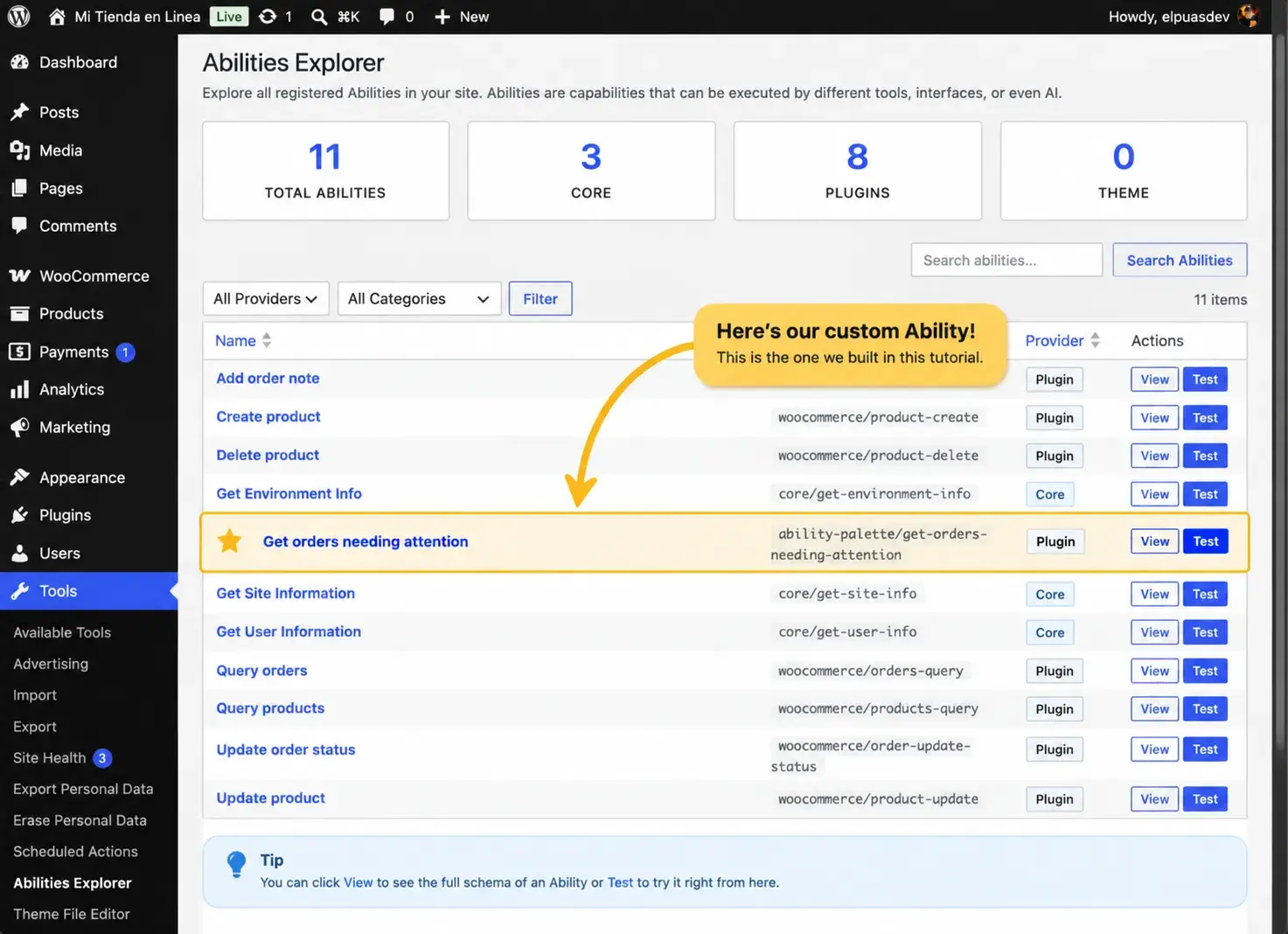
For me, this is the real first step.
There is still no Command Palette code here. We simply taught WordPress something our store can do.
Follow this step:
git switch --detach tutorial/step-01-abilityGiving That Ability to a Human
Now we have a working Ability.
So the next question was obvious:
Can the person managing the store run this same Ability from the Command Palette?
Sure, I could create a Command Palette command and query WooCommerce directly from there. But then I am building the same idea around the Command Palette.
I wanted the Command Palette to run the Ability we already have:
WooCommerce
     ↓
   Ability
     ↓
Command Palette
The Command Palette only needs to know how to run an Ability. It doesn’t need to know anything about WooCommerce.
A generic Ability → Commands adapter
For that I built a small bridge between the client-side Abilities API and the Commands API.
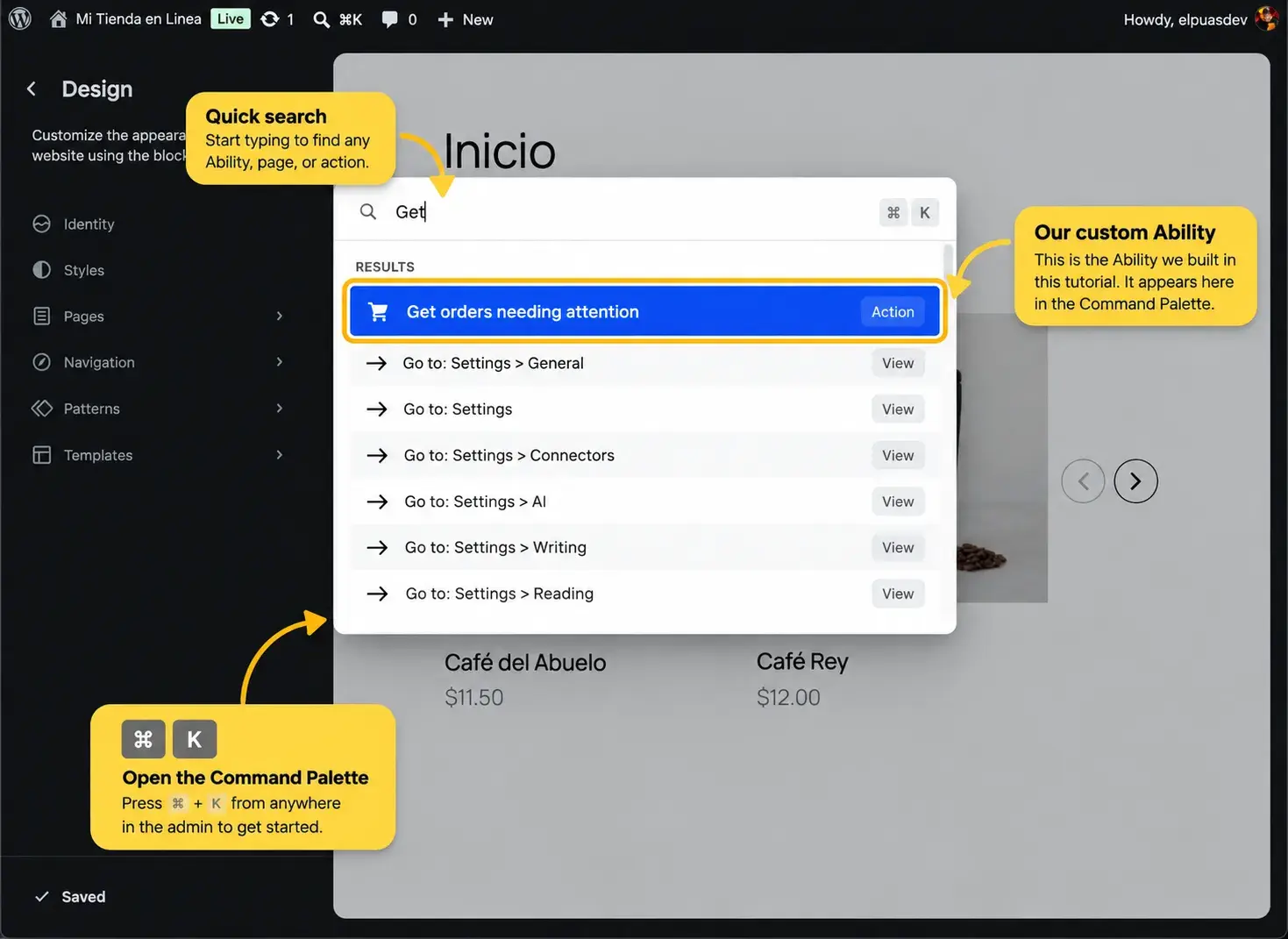
I called it an adapter, but there isn’t much magic here. Abilities in the command-palette category are picked up and registered as commands.
The flow looks like this:
PHP Ability
    ↓
Core Abilities bridge
    ↓
@wordpress/abilities
    ↓
category: command-palette
    ↓
generic adapter
    ↓
@wordpress/commands
    ↓
Command Palette
The adapter reuses the Ability’s name and label.
This is the registration loop in step 2’s assets/command-palette-adapter.js. The callback is still empty at this point:
getAbilities( { category: 'command-palette' } ).forEach( ( ability ) => {
	registerCommand( {
		name: ability.name,
		label: ability.label,
		category: 'action',
		callback: () => {},
	} );
} );
This was important to me: I didn’t want to build a WooCommerce command. I wanted a small bridge that could work with another Ability later without changing the WooCommerce logic.
Of course, it didn’t work the first time
My first version loaded the adapter with enqueue_block_editor_assets.
That looked fine while working in the editor, but then I opened the Command Palette from the Plugins screen and my command was nowhere to be found.
The reason was simple: the Command Palette was there, but my JavaScript wasn’t.
Changing to admin_enqueue_scripts fixed that part.
Then I found a less obvious problem.
The adapter dynamically imports @wordpress/core-abilities. Enqueuing that package directly as an entry module did not make the bare module specifier available through the import map used by the dynamic import.
The fix was to declare @wordpress/core-abilities as a module dependency of the adapter.
These are the options passed to wp_enqueue_script() in step 2:
array(
	'in_footer'           => true,
	'module_dependencies' => array( '@wordpress/core-abilities' ),
)
After that, everything connected. The PHP Ability reached the client-side store, kept the command-palette category, and the adapter registered it as a command.
And finally, Get orders needing attention showed up in the Command Palette.
Follow this step:
git switch --detach tutorial/step-02-command-adapterExecuting the Same Ability
Seeing the command was nice, but now it had to actually do something.
The important part was making sure it executed the same Ability from Part 1, not a second implementation hidden in JavaScript.
For that, the adapter uses executeAbility() from @wordpress/abilities.
During testing, selecting the command produced:
GET /wp-json/wp-abilities/v1/abilities/ability-palette/get-orders-needing-attention/run
The request returned 200 OK with:
{
	"processing": 0,
	"on_hold": 0
}
At this point I had what I originally wanted to prove. The same WooCommerce Ability was running from the Command Palette.
WooCommerce
    ↓
PHP Ability
    ↓
WordPress Abilities API
    ↓
Client-side Ability
    ↓
Command Adapter
    ↓
Command Palette
    ↓
executeAbility()
    ↓
WooCommerce result
There was only one problem: from the user’s side, it looked like nothing happened.
Commands execute actions; they don’t render results
The Ability returned the correct data, but the Commands API doesn’t have a place to show arbitrary results.
My first callback was basically doing the work and then throwing the result away. It also wasn’t using the close() function passed by the Command Palette, so the palette stayed open.
Waiting for the Ability and then calling close() fixed that.
In step 3, the command callback becomes:
callback: async ( { close } ) => {
	await executeAbility( ability.name );
	close();
},
But now I had another question:
Where do I show the result?
Follow this step:
git switch --detach tutorial/step-03-command-executionExecution Feedback Is Not Result UI
I started with the simplest answer I could think of: use the WordPress notices we already have.
After successful execution:
- close the Command Palette;
- show a standard success snackbar.
On failure:
- close the palette;
- show a standard error snackbar.
That worked without adding WooCommerce logic to the adapter.
Step 4 gets its notice actions from wp.notices:
const { createErrorNotice, createSuccessNotice } = window.wp.data.dispatch(
	window.wp.notices.store
);
The success path calls createSuccessNotice() with type: 'snackbar'; the error path does the same with createErrorNotice().
Or at least I thought it worked.
The snackbar was there… somewhere
On the Plugins screen the notice was created correctly in core/notices. It was even in the DOM.
But I couldn’t see it.
The fallback SnackbarNotices renderer had been appended near the end of the document and used absolute positioning. On a long Plugins screen, the snackbar was effectively rendered near the bottom of the page, outside the current viewport, and disappeared before the user ever saw it.
Editors already provide Core’s own fixed snackbar renderer.
So the adapter now:
- relies on Core’s existing snackbar surface in editor contexts;
- mounts a small scoped fixed fallback only on classic wp-admin screens where one is needed.
After fixing the fallback position, the snackbar finally behaved the same way a user would expect in both places.
Follow this step:
git switch --detach tutorial/step-04-result-feedbackBut then I looked at the message:
Get orders needing attention completed.
Nice. But that doesn’t tell the Shop Manager anything useful.
The Ability already knows there are zero processing orders and zero on hold. I wanted to see that result.
Rendering Structured Ability Results
The Ability already returned the information we wanted:
{
	"processing": 0,
	"on_hold": 0
}
So the last piece was showing the actual result while keeping the adapter generic.
I used the public WordPress Modal and built a small result renderer around it.
The flow becomes:
Command Palette
      ↓
executeAbility()
      ↓
structured result
      ↓
close palette
      ↓
generic result renderer
      ↓
WordPress Modal
The returned data is still the source of truth. The Ability’s output_schema just helps make that data nicer to read.
For example:
processing → Processing
on_hold → On hold
If the schema provides a title or description, the renderer can use it without knowing anything about the domain.
In step 5’s renderResultValue(), each object entry gets its label this way:
const itemSchema = getPropertySchema( schema, key );
const isComplex = item !== null && typeof item === 'object';
const label = itemSchema?.title || humanizeKey( key );
Inside the Modal, the result is passed to that same renderer:
createElement(
	'div',
	{ className: 'ability-palette-result' },
	renderResultValue( result, ability.output_schema )
),
The same renderer can recursively handle:
- strings;
- numbers;
- booleans;
- null;
- objects;
- nested objects;
- arrays.
It never renders returned strings as HTML.
The result
Selecting Get orders needing attention now opens a WordPress-native modal showing the actual Ability result.
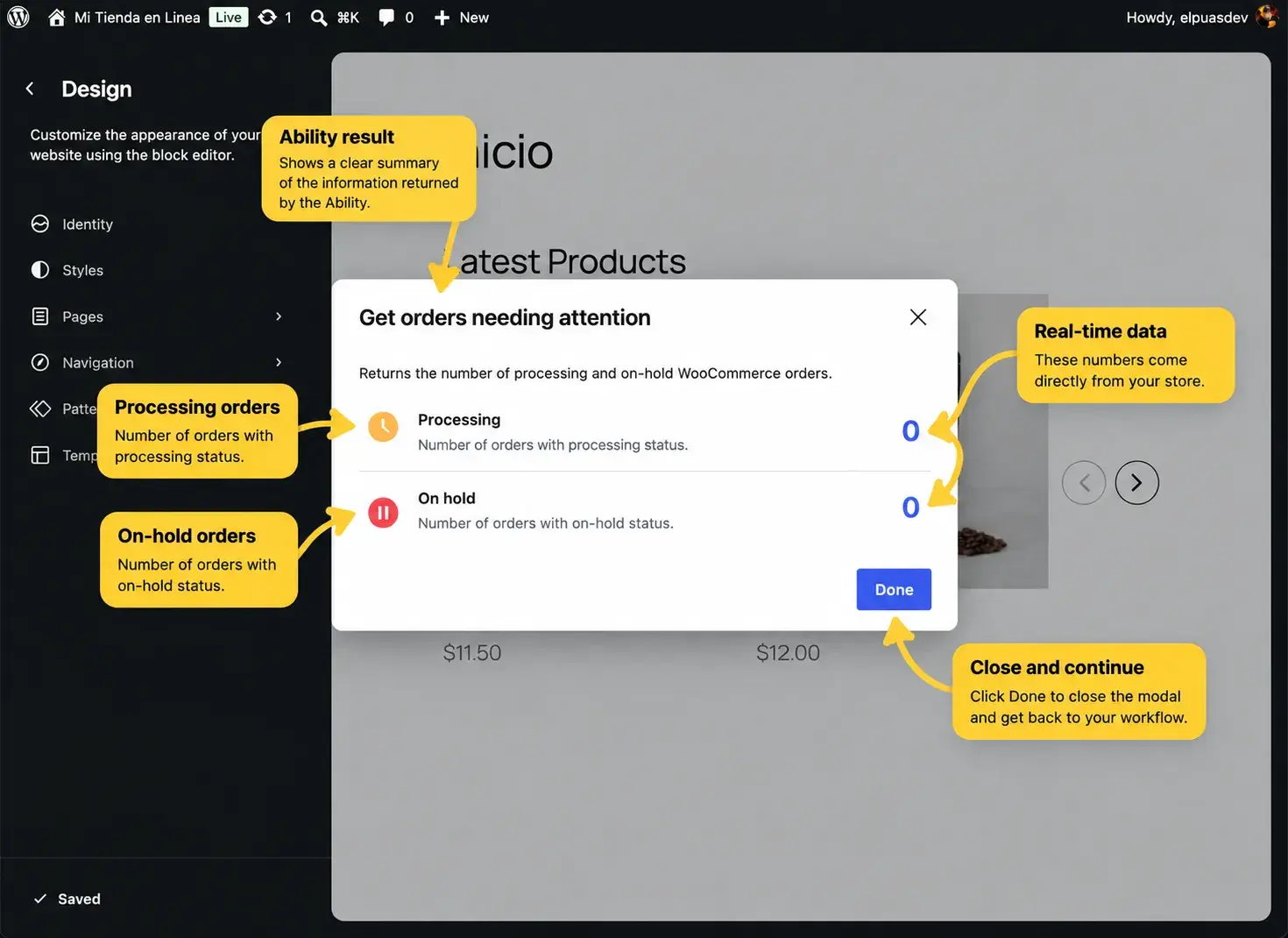
This is where the whole experiment clicked for me.
The adapter doesn’t know what an order is. The modal doesn’t know what WooCommerce is.
All the store logic is still in the Ability.
WooCommerce
     ↓
   Ability
     ↓
┌────┴──────────────┐
↓                   ↓
Abilities        Command
Explorer         Palette
                    ↓
              Result Modal
Follow this step:
git switch --detach tutorial/step-05-result-modalA small edge case we found along the way
This Ability intentionally accepts no input, so its PHP registration correctly omits input_schema.
During client-side execution in this WordPress 7.1 experiment, I saw a non-fatal schema warning.
The PHP API treats the omitted input schema as optional, but the REST/client bridge serializes the empty value in a way that causes the JavaScript validator to attempt validation and warn about the missing schema type.
Execution still succeeds.
I left it that way. The Ability doesn’t accept input, so I didn’t want to change its contract just to make a warning disappear.
These are the little things you find when you actually build with a new API instead of only reading the documentation.
So where does AI fit?
And this is where I come back to AI.
We didn’t build an AI tool.
We built something our WooCommerce store knows how to do, and then we made the Command Palette one way to run it.
The same architectural idea leaves room for other consumers:
                    ┌─ Command Palette
                    │
WooCommerce → Ability ── REST
                    │
                    ├─ Workflow
                    │
                    └─ Agent / MCP
For me, that is the interesting part.
Define what WordPress can do once, then let different interfaces, human or machine, use it.
That’s what I took from Matías’s comment at WordCamp Costa Rica. His Abilities & Workflows overview explores that broader connection too.
I started this experiment thinking about the connection between Abilities and the Command Palette. I finished it thinking that Abilities are much more interesting when we stop looking at them only as tools for AI.
Follow the code
The complete plugin is available in the public Ability Palette repository.
If you want to follow the experiment step by step, clone the repo and switch to the tutorial branch:
git clone https://github.com/elpuas/ability-palette.git
cd ability-palette
git switch tutorial
git tag
The tutorial is one linear history with five tagged checkpoints:
tutorial/step-01-ability
tutorial/step-02-command-adapter
tutorial/step-03-command-execution
tutorial/step-04-result-feedback
tutorial/step-05-result-modal
Each part of this article includes the command to check out the exact code for that step.
When you want to return to the complete tutorial:
git switch tutorialThe repository’s default branch contains the final working version.